Guide: Lovable
How to hand over a Lovable site to your client and let them edit it.
You built the site in Lovable, the client loves it, and now they want to change the opening hours themselves. Here is how to hand it over without giving them your Lovable workspace, and without becoming their typo desk.
The short answer
Lovable handover in short.
Connect the Lovable project to GitHub so the code lives in a repository, then decide who owns that repository and the hosting before the client starts editing.
Do not invite the client into your Lovable workspace: a prompt there can change layout and logic, and moving the project to their workspace breaks the GitHub link.
Connect the repository to CMS Chat instead: your client changes texts, prices and photos by asking, layout and code stay locked, and bigger asks come back to you as requests.
The handover problem
What actually breaks when you hand over a Lovable site.
The client needs edits, not the builder
Lovable is a full app builder. Give a client access and one vague prompt can restyle a page or rewrite a component. Most clients only want to change words, prices, photos and hours.
Who owns the repository
Lovable creates the GitHub repository under the account or organization you connected. Decide early whether it stays with you or moves to the client, because moving it later needs the right GitHub connection in Lovable or the sync stops.
Hosting and publishing
A site published from Lovable is a snapshot: changes, including ones synced from GitHub, go live when someone publishes again. Hosting the repository somewhere that deploys on every push removes that manual step.
Who pays for what
Your Lovable plan, the hosting, the domain, and the client's editing are four different bills. Settle them in writing before the handover, so a lapsed card does not take the site down.
Before you hand over
The checklist. Ten minutes now saves the support mail.
- The project is connected to GitHub and the repository holds the latest version
- You know which GitHub account or organization owns the repository, and whether it stays with you
- The site deploys from somewhere you control, ideally on every push to main
- The domain is in the client's name, or the transfer is agreed
- Texts that change often (hours, prices, team, FAQ) are plain text in the code or content files, not baked into images
- If content lives in a Supabase database, you know whose project it is and you have its keys
Step by step
From Lovable project to a client who edits.
The connect part takes about 2 minutes once the code is on GitHub. Inviting the client and the first change take another ten.
- 01
Connect the Lovable project to GitHub
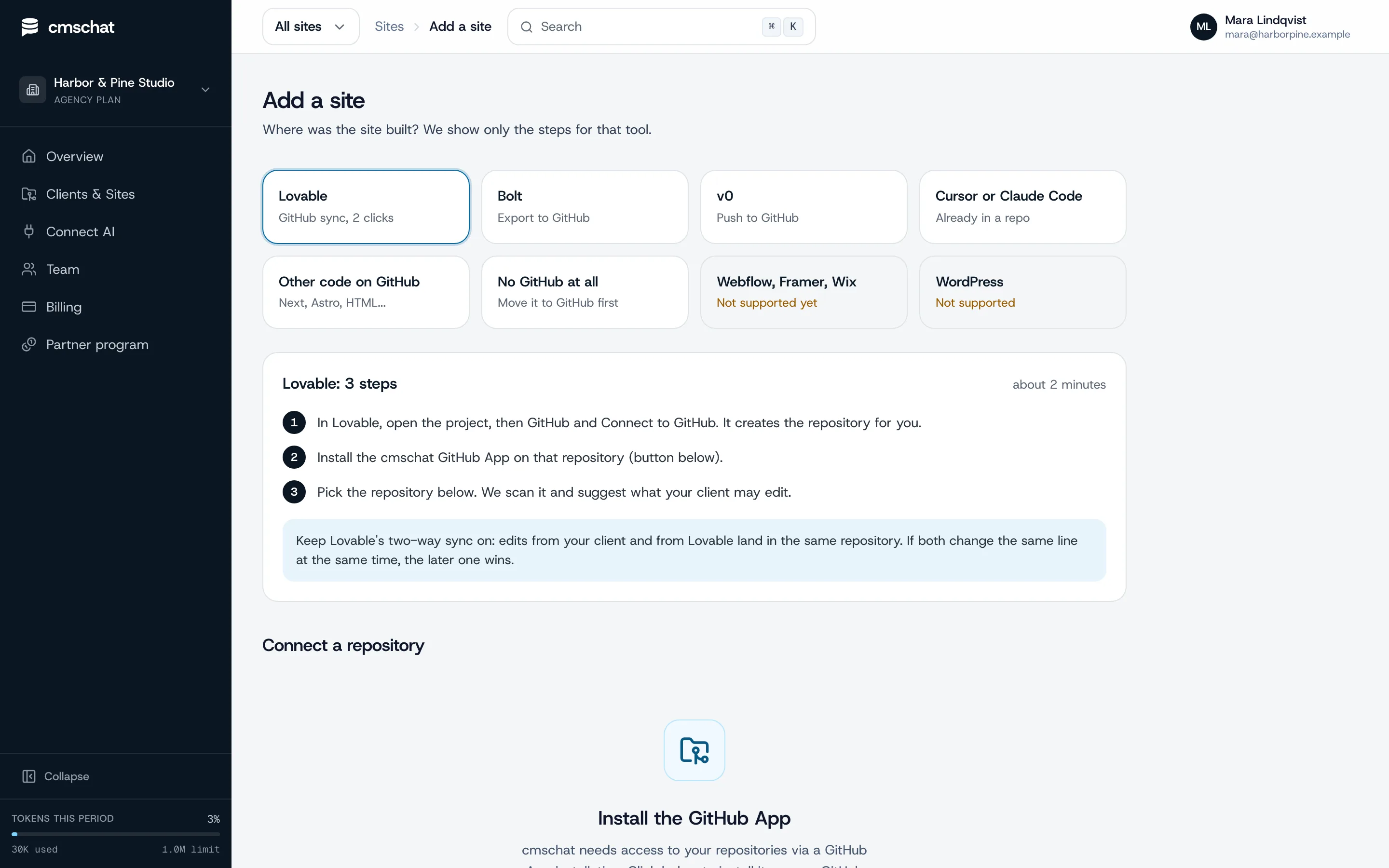
In Lovable, open the project, then GitHub and Connect to GitHub. Lovable creates a new private repository and keeps it in sync both ways on one branch, usually main. It cannot link to a repository that already exists.
Keep Lovable's two-way sync on: edits from your client and from Lovable land in the same repository. If both change the same line at the same time, the later one wins.
- 02
Install the CMS Chat GitHub App on that one repository
In CMS Chat, open Add a site and pick “Lovable”: you see only the steps for that tool. Then install the GitHub App on the site's repository only. It can read that repository, write to it and open pull requests on it. Nothing else in the account.
- 03
Pick the repository and check what is editable
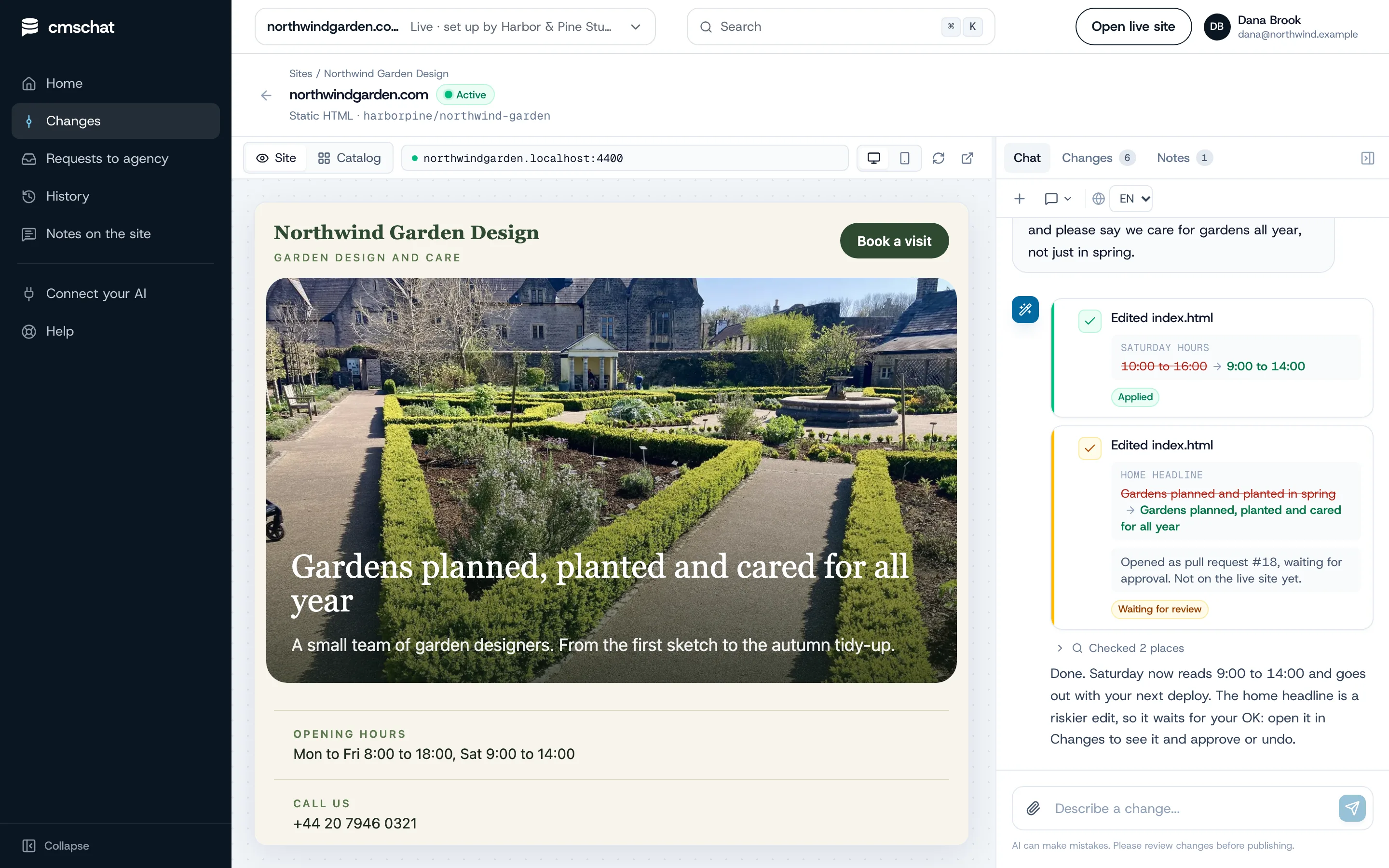
CMS Chat scans the repository, detects how the site is built and suggests what the client may edit: texts, prices, photos, opening hours. Page titles and headings ask before they change. Layout and code stay locked.
- 04
Invite your client
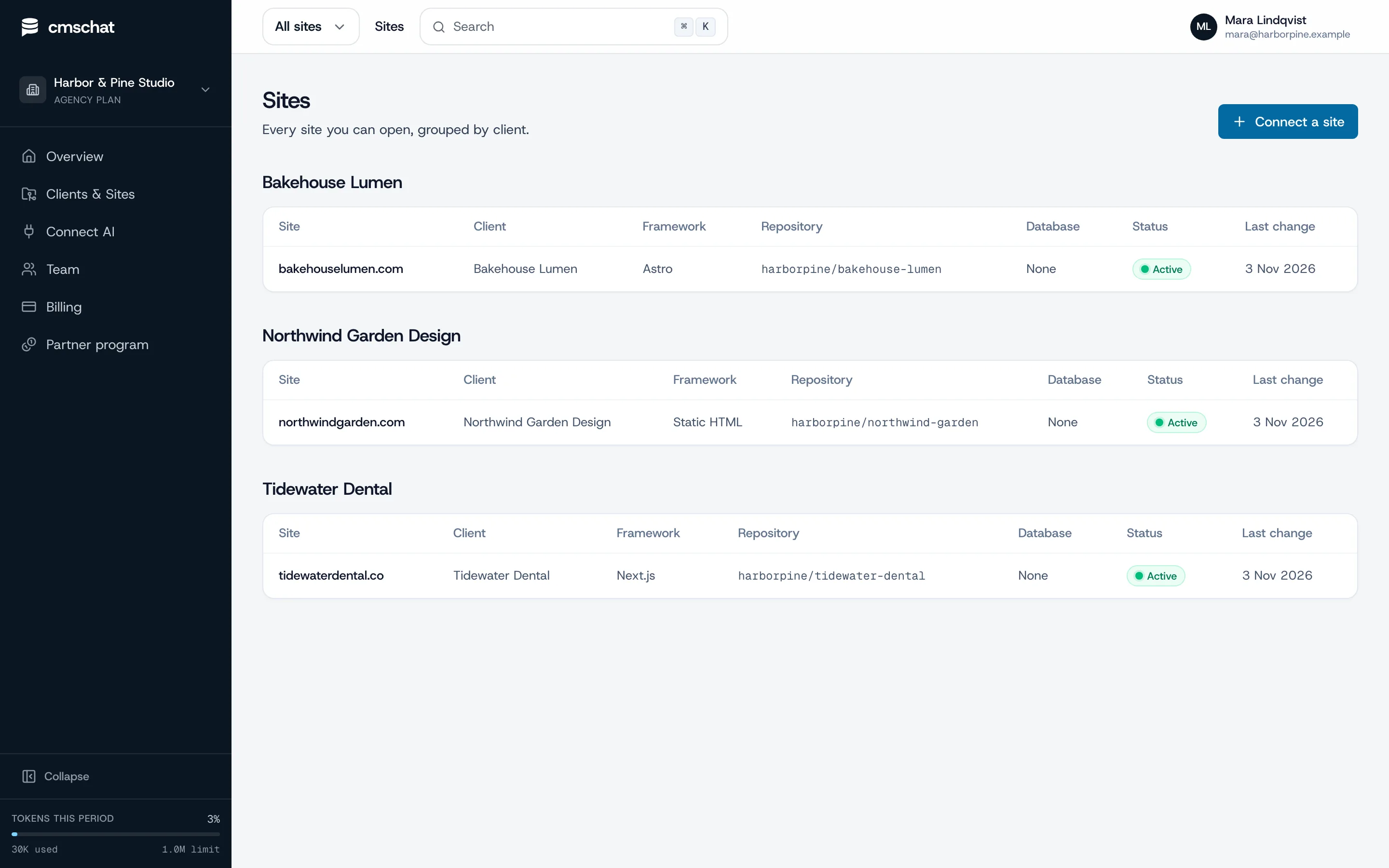
Add the client under Clients and Sites, assign the site and send the invite link. Your client gets a login that shows their site and nothing else: no agency dashboard, no other clients, no settings to break.
- 05
Make the first change together
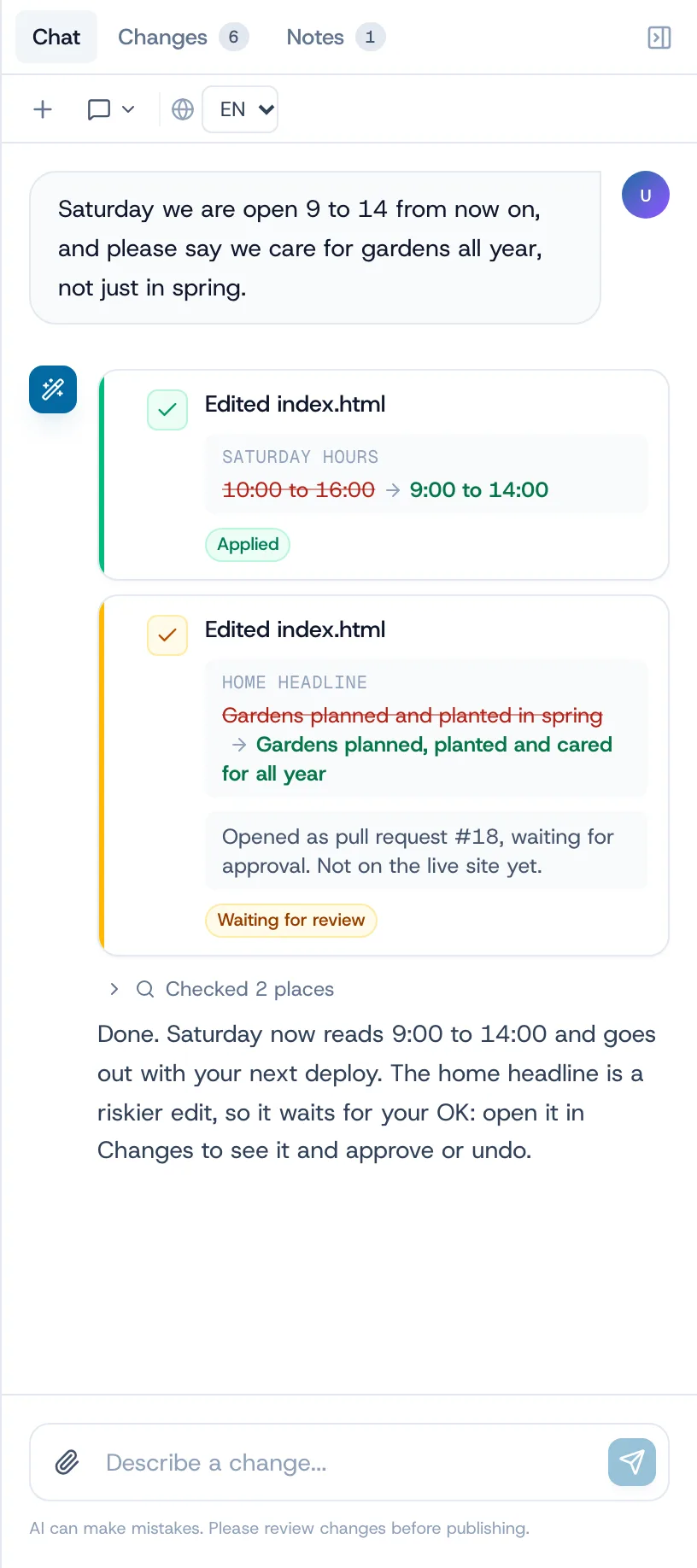
Ask for one small change while your client watches, for example “Saturday we are open 9 to 14”. They see before and after, the change is committed to the repository, and riskier edits wait for an OK.
How a change goes live on a Lovable site
CMS Chat commits each change to the repository. If the site is published from Lovable, the commit syncs into the project and goes live the next time someone publishes there. If the repository deploys on push (Vercel, Netlify, Cloudflare Pages), it goes live with that deploy, and CMS Chat shows the deploy status in the change list.
Small fix or agency job
Where the line sits after the handover.
The client handles the small edits on their own plan. Everything that changes how the site works or looks stays with you, as a request you can quote.
Your client, alone, in a sentence
- Headlines, paragraphs and button texts
- Prices, packages and offers
- Photos and team members
- Opening hours, phone number, address
- FAQ answers and a holiday banner
Your agency, quoted and built
- A new page or a new section
- Booking, forms, login or payments
- Layout changes and a redesign
- New Lovable features built by prompt
- Anything in the code or the database structure
What your client sees
One box to ask. One list to undo.
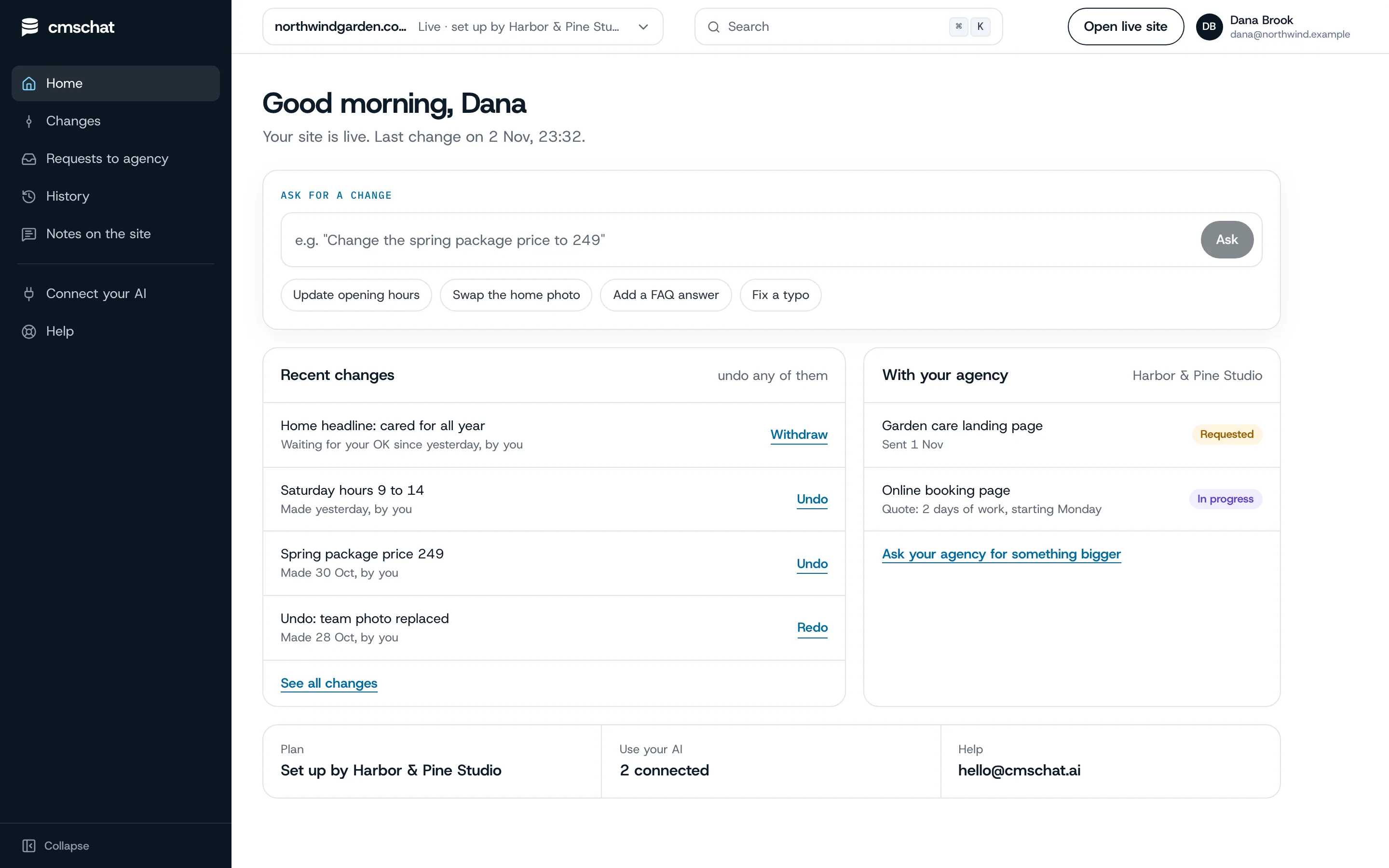
Your client opens their home, types the change, and sees it in their list of recent changes with an undo. Bigger asks go to you from the same screen.
- Their own login, their site only
- Every change in their history, with an undo
- “Ask your agency for something bigger” on the same page
What you see
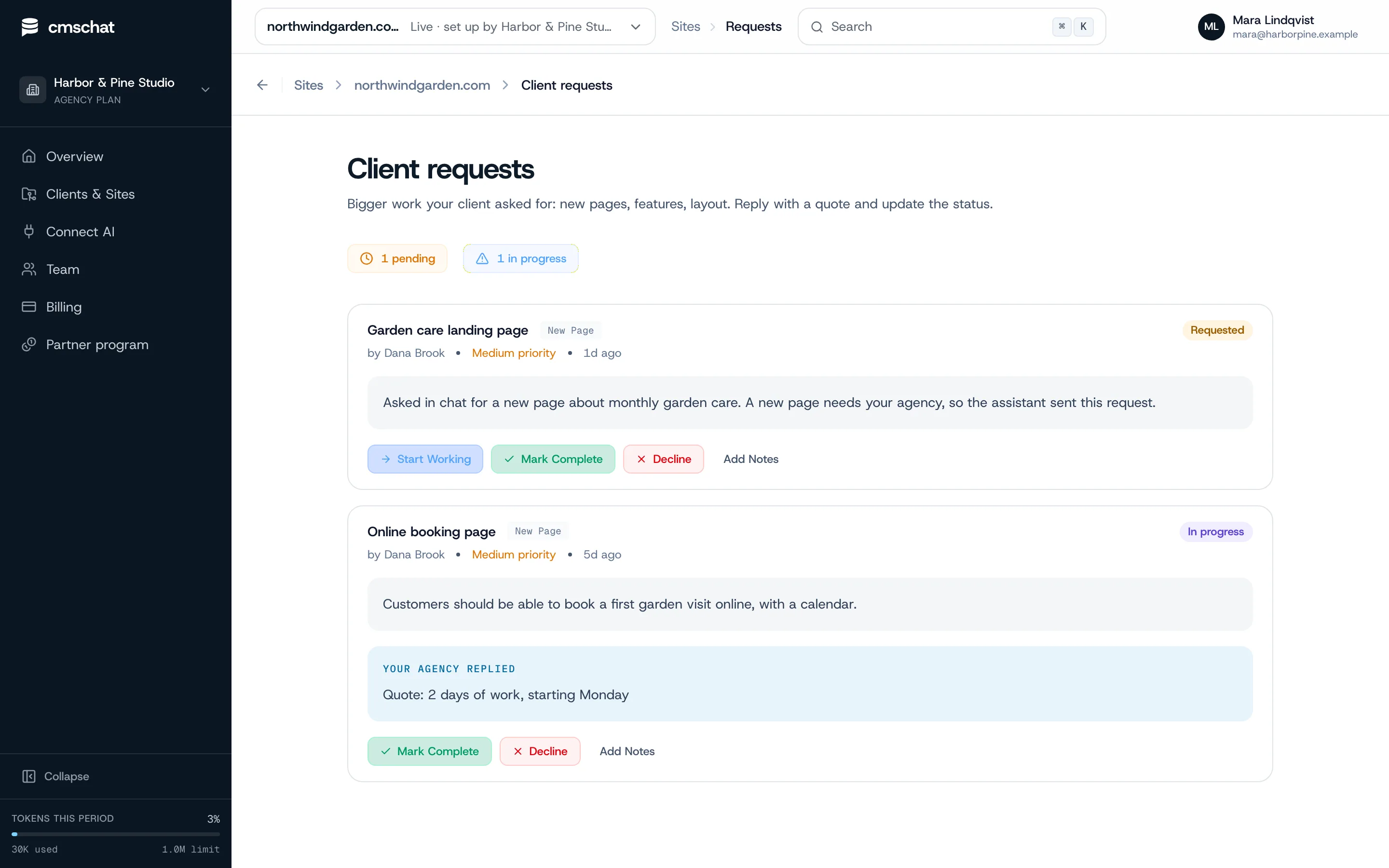
Bigger asks arrive as requests. Ready to quote.
When your client asks for a new page or a booking form, the request lands with you, in their words. You reply with a quote and update the status.
Lovable specifics
What goes wrong and how to avoid it.
Two editors, one repository
Keep Lovable's sync on: your client's edits and your Lovable work land in the same repository. If both change the same line at the same time, the later one wins, so tell the client when you are building.
Do not transfer the project to the client's workspace
Moving a Lovable project to another workspace breaks its GitHub connection, and reconnecting creates a new repository. Keep the project with you and give the client editing access through CMS Chat instead.
Texts inside images and data
Lovable often puts hero text on images or in arrays inside components. Plain text in components edits fine; text baked into an image does not. Move it out before the handover.
Content in Supabase
Product lists or tours stored in a Supabase database are database content: CMS Chat edits them on the Pro plan once the database is connected, which needs the project's keys. Lovable Cloud projects do not give you a normal Supabase dashboard, so check access first.
Do not delete or detach the repository
Deleting the GitHub repository stops Lovable's sync, and so does disconnecting it. Renaming the repository or the organization is fine.
Publish rights
If you keep publishing from Lovable, agree who presses Publish after the client's changes, or move hosting to a deploy-on-push host so nobody has to.
Who pays for what
Clear money, no awkward invoices.
Your client’s editing
Your client picks a plan from the public price list and pays CMS Chat directly, from EUR 29 / month incl. VAT. Same price with or without an agency.
The AI
Your own ChatGPT or Claude: not metered by us. Built-in assistant: a monthly allowance that resets each month.
Your bigger work
New pages, features and redesigns stay between you and your client, quoted and invoiced by you as before.
Questions
Lovable handover, asked before
Anything missing: write to hello@cmschat.ai and a person replies.
Can my client edit a Lovable site without a Lovable account?
Should I transfer the Lovable project to my client?
Does Lovable's two-way sync keep working?
Do changes go live straight away?
What can my client change, and what stays locked?
Who pays for the client's editing?
Is CMS Chat made by Lovable?
Other builders
Building sites for clients? See how CMS Chat works for agencies.
Hand it over. Keep the big work.
Connect the repository, invite your client, make the first change together.
month to monthundo any changecode stays in your GitHub
Prefer to see it first? Ask for a walkthrough